Insights
Statistics
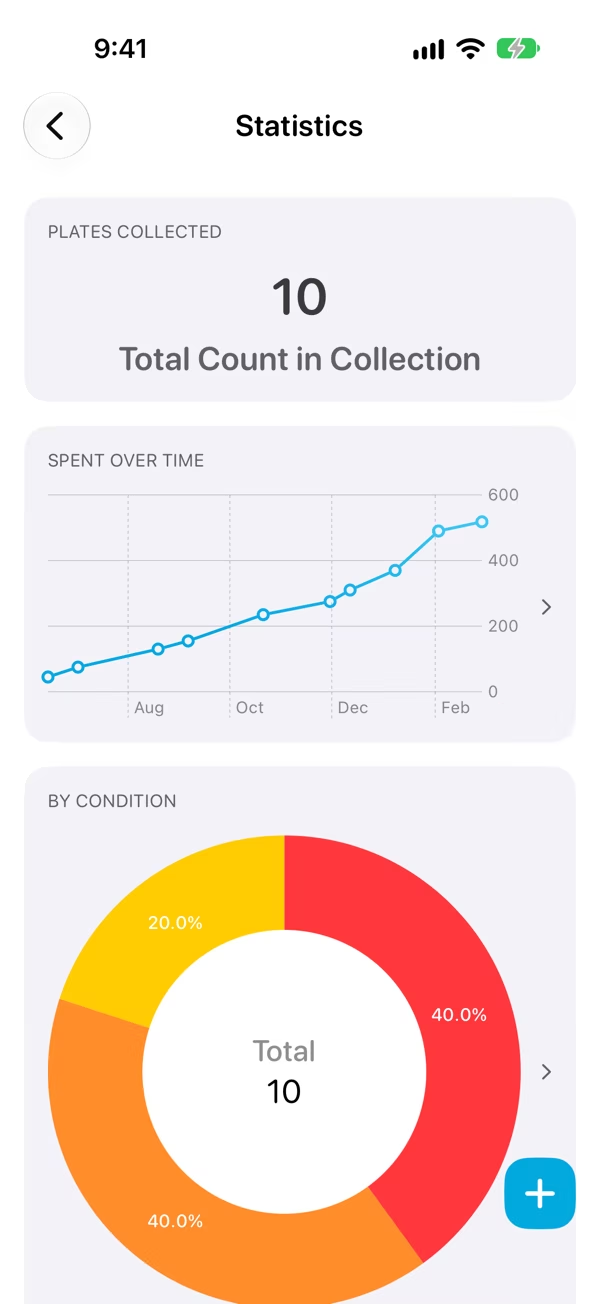
Build charts and totals from your collection, like what it's worth, what you've spent over time, or how it breaks down.
Statistics turns a collection's fields into charts. Open a collection and tap the chart button at the top to see them.
Create a chart
Tap + on the Statistics screen and follow the steps:
- Chart Name: what the chart's called.
- Data Source: chart your Collection or your Wishlist.
- Chart Type: pick the kind of chart (below), its Plot Type (how the numbers are worked out), and its Sort Order.
- Fields: choose the field (or fields) to chart. Only fields of a type the chart can use are offered.
- Preview: check it, then tap Create Chart.
On the free version, each collection can have one chart. More needs Classifier Pro.
Chart types
| Chart | What it shows | Plot types |
|---|---|---|
| Donut Chart | How a field breaks down, such as items by Condition | Count, Sum |
| Bar Chart | The same as bars, or how many items have each tag | Count, Sum, Tag Count |
| Line Chart | How something grows over time, from a Date field, such as what you've spent | Count, Sum, Cumulative Count, Cumulative Sum, Number of Variations, Total Count, Total Sum |
| Text Statistic | A single number, such as the total value of the collection | Number of Variations, Total Sum, Total Count, Tag Count |
Sum and Total Sum add up a Number or Currency field. Cumulative adds each value onto the ones before, so the line only goes up. Number of Variations counts the different values of a field, such as how many countries your coins come from.
Edit, reorder or delete a chart
- Touch and hold a chart and choose Edit Chart or Delete Chart.
- Drag charts to change their order.