Getting started
Getting started
Install Classifier, create your first collection from a template, and add your first item.
Classifier keeps track of anything you collect, from licence plates and coins to vinyl, LEGO and trading cards. Each collection has its own fields (the details you want to record), and each item in it can have photos and tags. Here's how to get going.
Install Classifier
Classifier runs on iPhone, iPad and Mac. Download it free from the App Store, then open it.
If you're signed in to iCloud, your collections sync between your devices automatically. There's nothing to set up. See iCloud sync if they don't show up.
Create your first collection
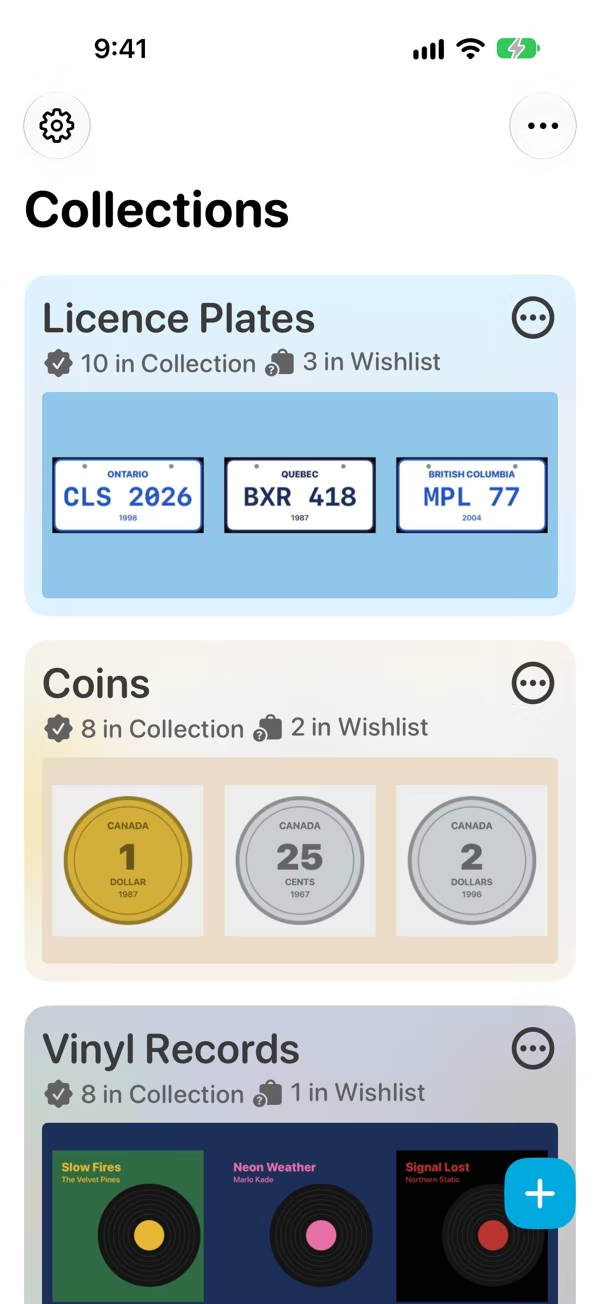
The first time you open Classifier, it welcomes you and walks you through creating a collection. Tap Get Started to begin. (Skipped it? Tap + on the Collections screen at any time.)
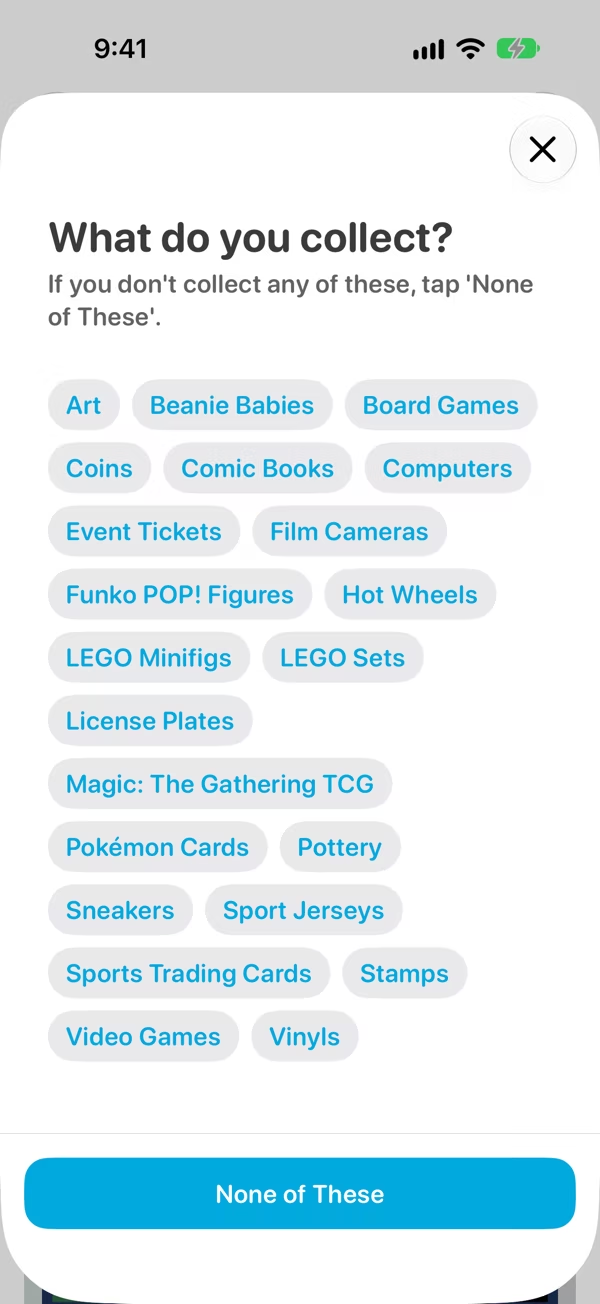
- Pick a template. Classifier has templates for over 20 kinds of collection, such as Coins, Stamps, Pokémon Cards, LEGO Sets, Vinyls and License Plates. Each one comes with the fields that kind of collection usually needs.
- Check the fields. Tap a field to rename it, change its type or remove it, and drag the fields into the order you'd like.
- Add a cover photo if you like. It's optional, and you can add one later.
- Tap Create Collection.
Collect something that isn't on the list? Tap None of These instead, give your collection a name, and add your own fields as you add items.
A collection made from a template takes the template's name. To call it something else, choose Change Name from its menu (see Collections).
Add your first item
Open the collection and tap +. Fill in the fields, add a photo or two and any tags, then tap Add to Collection. Items has the details.
What's free, and what's Pro?
Everything in this guide is free, apart from the steps with a Pro badge. The free version holds 2 collections of up to 20 items each. Free vs Pro has the full list.