Your collections
Collections
Create, rename, re-cover, sort and delete your collections.
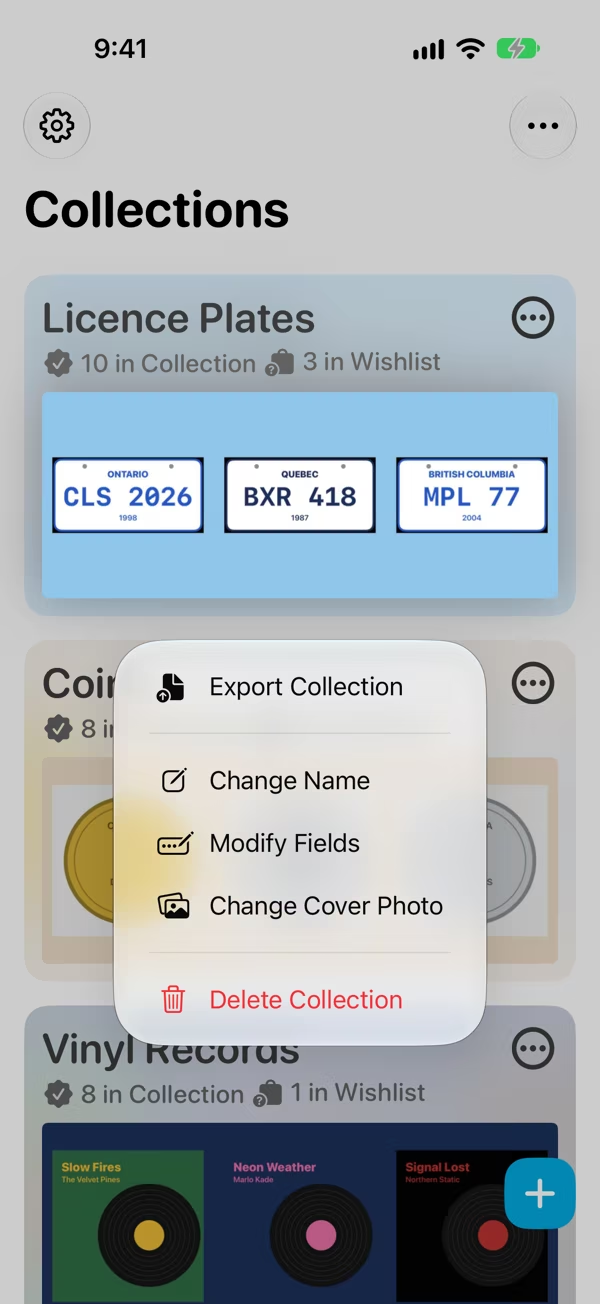
The Collections screen is home. Each card shows the collection's cover photo and how many items are in the collection and in its wishlist. Tap a card to open it.
Create a collection
Tap + on the Collections screen (or press ⌘N on a Mac or an iPad with a keyboard). Pick a template and check its fields, or tap None of These and name your collection. Add a cover photo if you like, then tap Create Collection. Getting started goes through each step.
On the free version you can have 2 collections. A third needs Classifier Pro.
Edit a collection
Touch and hold a collection's card (or tap its ⋯ button) to see its menu:
- Change Name
- Modify Fields, to rename, retype, reorder or delete fields. See Fields.
- Change Cover Photo. The cover is cropped to a wide 2:1 shape. Tap Remove Selected Photo to go back to none.
- Export Collection, to save it as a spreadsheet and photos. See Import and export.
- Delete Collection
Once a collection is open, its own ⋯ menu has most of these too. On a Mac, right-click the card.
Sort your collections
Tap ⋯ at the top of the Collections screen, then Sort Collections. You can sort by Name, # Owned or # in Wishlist.
Delete a collection
Choose Delete Collection from the card's menu and confirm. This deletes every item and photo in it, on all your devices, and it can't be undone. If you want a copy first, export it.