Your collections
Import and export
Bring a collection in from a spreadsheet, with its photos, and export any collection as a spreadsheet and photos.
Import a collection from a spreadsheet
Already keep your collection in Excel, Numbers or Google Sheets? Classifier can import it as a new collection.
- Export your spreadsheet as a .csv (comma-separated) or .tsv (tab-separated) file. - The first row must be the column names. Each one becomes a field. - Each row after that becomes an item.
- Save the file to your device, for example in the Files app or iCloud Drive. Emailing it to yourself and saving the attachment works too.
- In Classifier, tap ⋯ on the Collections screen, then Import Collection. Follow the steps: name the collection, then tap Select File and pick your file.
- Check Select Delimiter matches your file: Comma for .csv, Tabs for .tsv.
- Tap Import Collection.
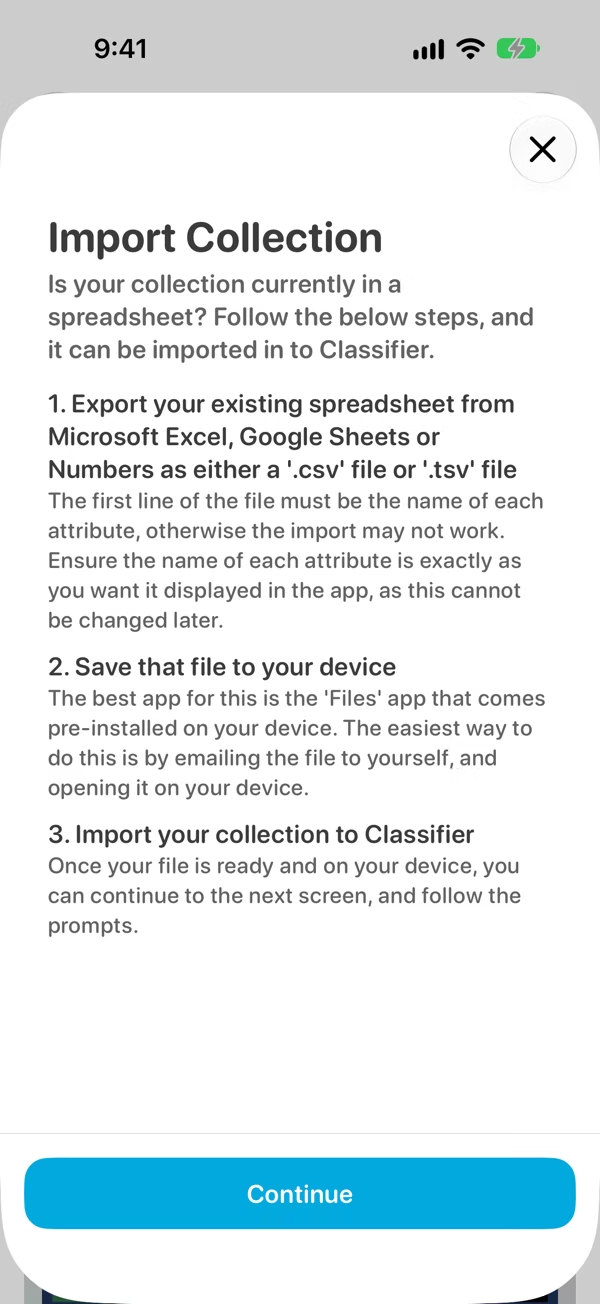
Classifier works out each field's type from what's in the column: Number, Date, Date & Time, Toggle, Long Text or Short Text. You can change a type afterwards from Modify Fields (see Fields).
Import photos too
To bring photos in with your items:
- Add a column named id to your spreadsheet, with a different value for each item, such as 1, 2, 3.
- Put the photos in one folder, as PNG files named after the item's id: 1.png. For more than one photo of an item, add a number: 1_0.png, 1_1.png.
- While importing, tap Select Photos Folder and pick the folder.
Export a collection
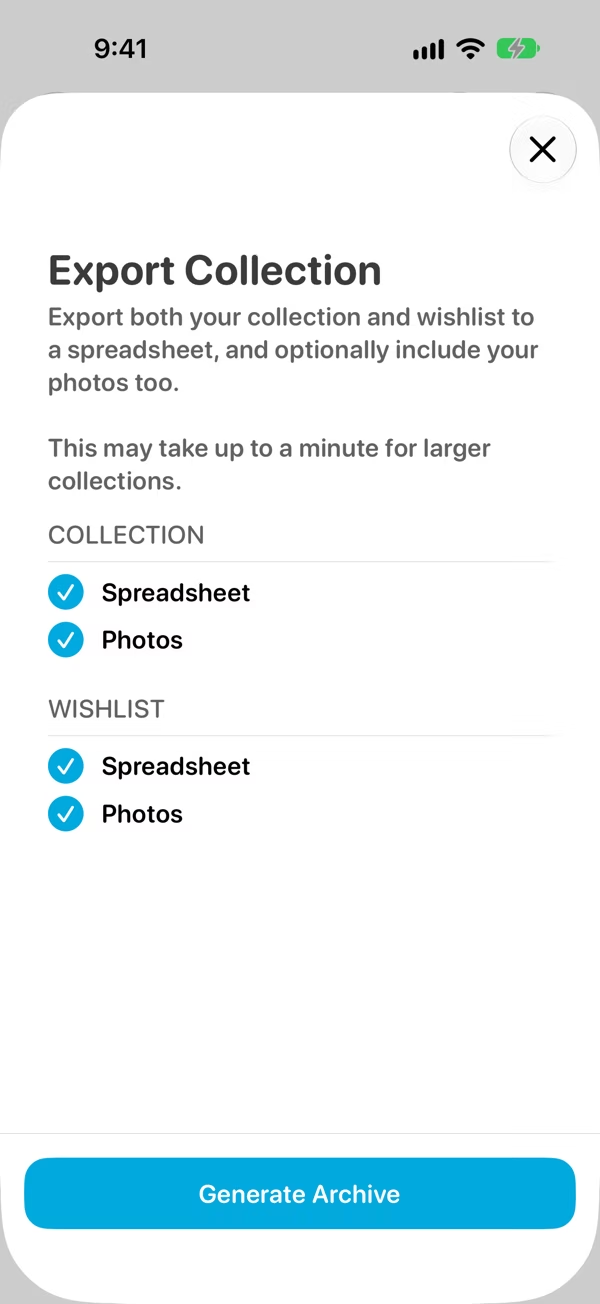
- Open the collection, tap ⋯, then Export Collection (or choose it from the collection card's menu).
- Choose what to include, for the Collection and the Wishlist separately: the Spreadsheet, the Photos, or both.
- Tap Generate Archive. A big collection with lots of photos can take up to a minute.
- Tap Save Archive to save the .zip file or send it somewhere.
The spreadsheets are .tsv files, which Excel, Numbers and Google Sheets all open. An export also makes a handy backup.
Want a picture of your collection rather than a spreadsheet? See Save to your photo library.