Your collections
Items
Add items to your collection or wishlist, view and edit them, move them between collections, and delete them.
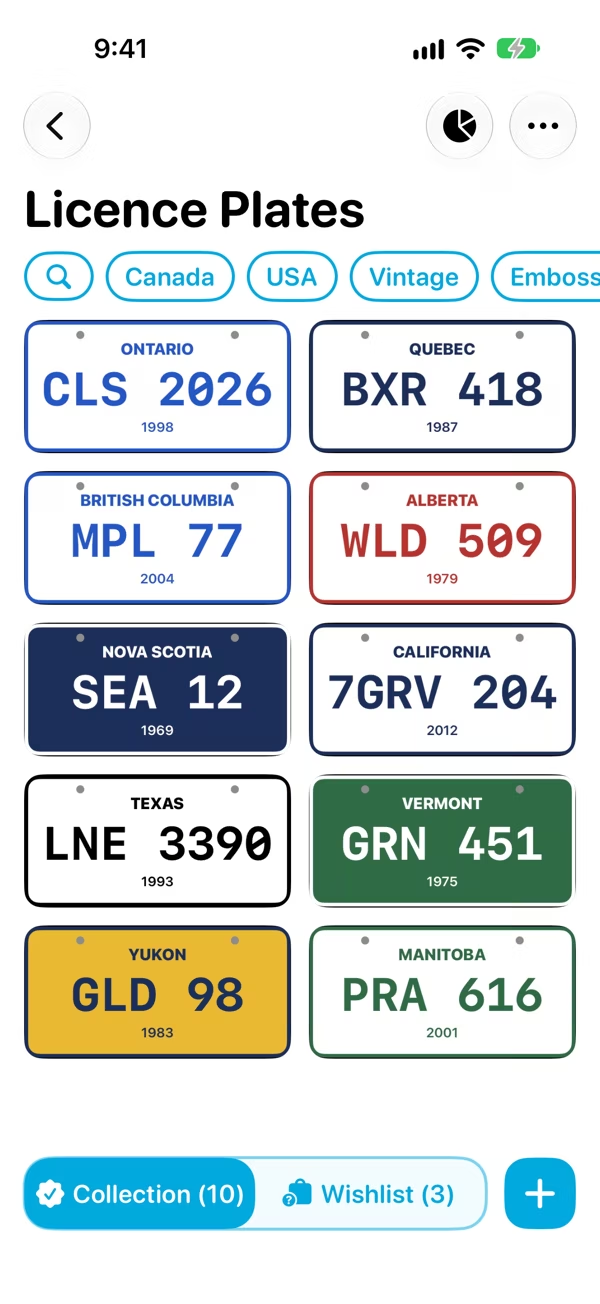
Open a collection to see its items as a grid of photos. The switch at the bottom flips between Collection (what you own) and Wishlist (what you're after), with a count for each.
Add an item
- Choose Collection or Wishlist at the bottom, depending on where the item belongs.
- Tap + (or press ⌘N).
- Fields: tap the fields you want to fill in. The collection's fields are listed first, then a few suggestions. Fill in each one. Need something new? Tap Add New Field. See Fields.
- Photos: add as many as you like from the camera, your photo library or Files. See Photos.
- Tags: type a tag, or several separated by commas. See Tags.
- Tap Add to Collection (or Add to Wishlist).
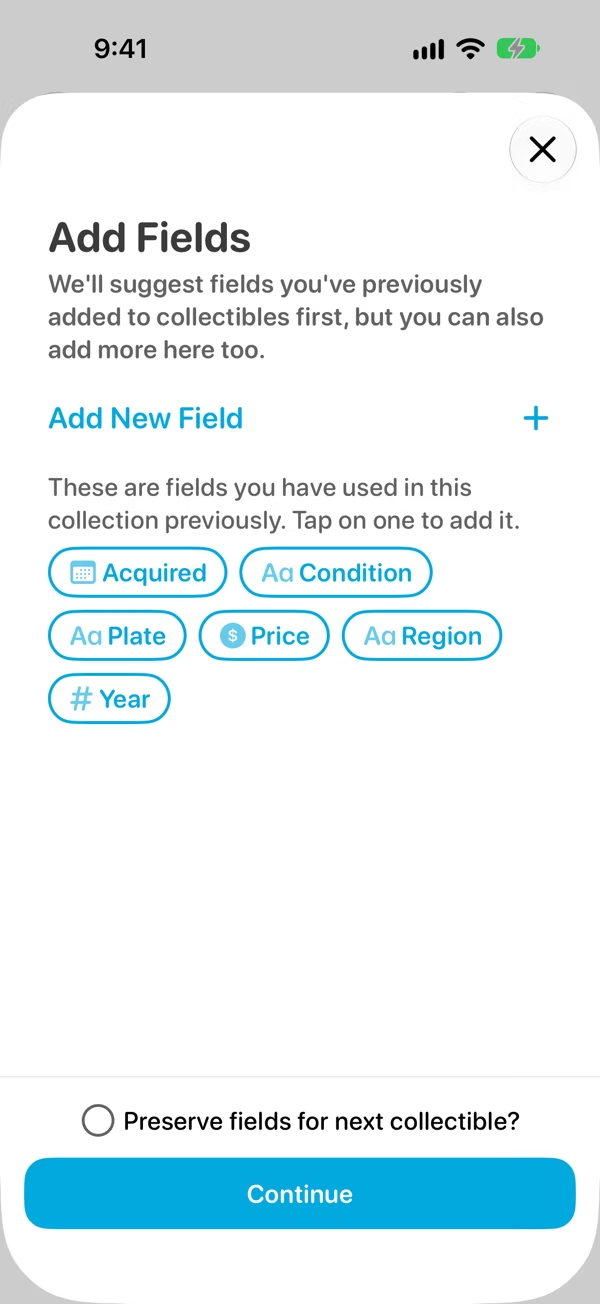
Every field you add needs a value. If you change your mind about one, touch and hold it and choose Remove Field.
On the free version, a collection holds up to 20 items, counting the collection and the wishlist together. More needs Classifier Pro.
View an item
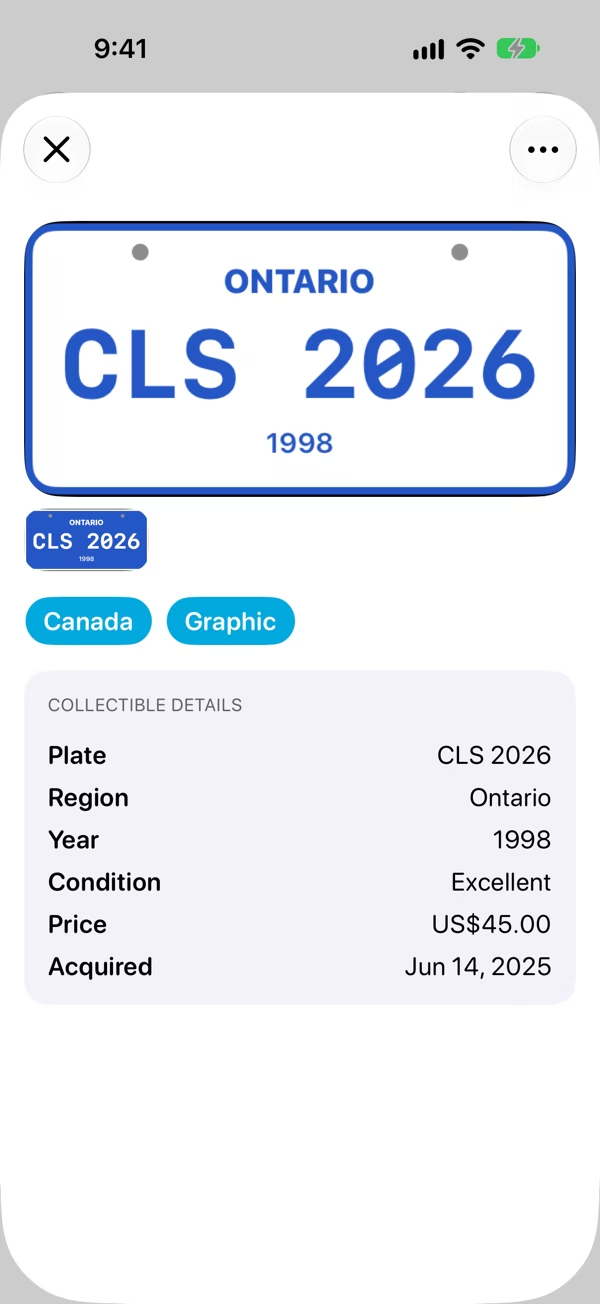
Tap an item to open it. You'll see its photos at the top and its details below. Swipe left or right to move through the rest of the collection without going back.
Location fields show a map, and barcode and QR code fields show the code itself.
Edit an item
Touch and hold an item in the grid, or tap ⋯ on its page, and choose:
- Edit Details, to change its fields
- Edit Photos
- Edit Tags
Change what you need, then tap Save Collectible.
Move a wishlist item into your collection
Finally got that one you were after? Touch and hold it in the Wishlist (or tap ⋯ on its page) and choose Add to Collection. Check its details, then tap Add to Collection again. Its photos come along with it.
Move an item to another collectionPro
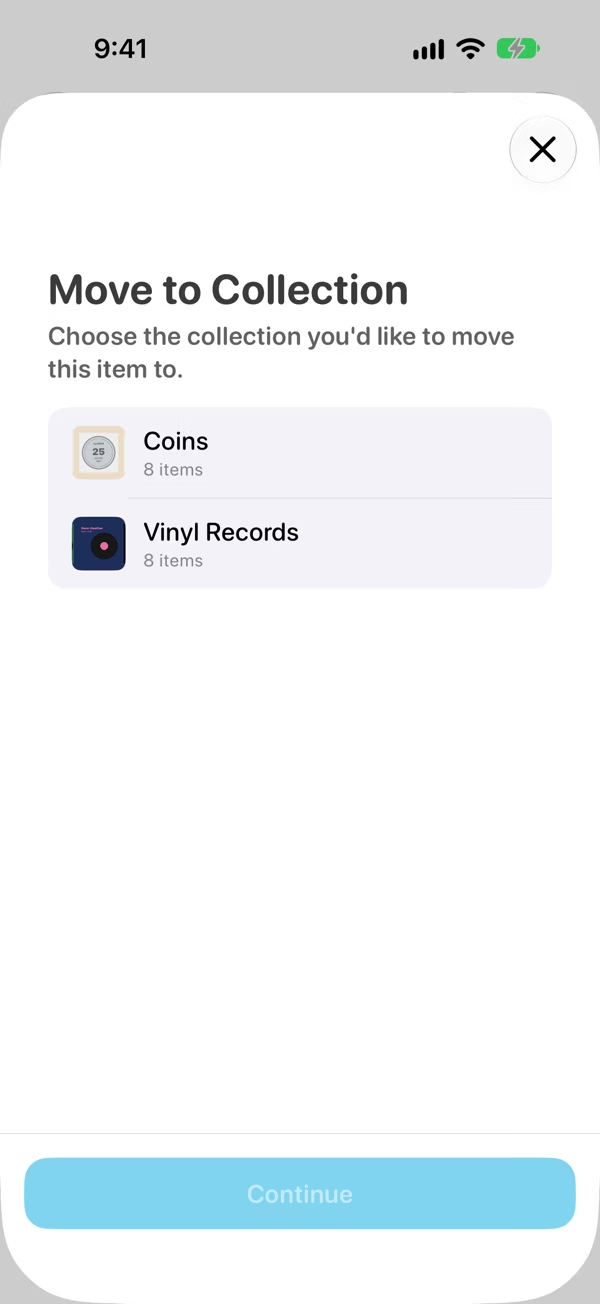
Touch and hold an item and choose Move to Collection... (it's in the ⋯ menu on the item's page too).
- Pick the collection to move it to.
- Check how each field will be handled. Fields the other collection has are kept, and the rest are either added to it or dropped. Classifier tells you which, and how many fields will be kept.
- Tap Move.
Delete an item
Touch and hold it and choose Delete Collectible, or tap ⋯ on its page. This can't be undone.
Big collections
Collections show 200 items at a time. Use Previous and Next at the bottom of the grid to see the rest, or narrow things down with search and tags.