Your collections
Photos
Add, crop and reorder an item's photos, view them full screen, and save a collection as one image.
Classifier works best with at least one photo of each item. The first photo is the one you see in the grid.
Add photos
On an item's Photos page (while adding it, or from Edit Photos), tap Add photo and choose:
- Camera, to take one now
- Photo Library, to pick one or several at once
- Files, for photos saved in the Files app or iCloud Drive
On iPhone and iPad, a single photo opens in a cropper first, so you can trim it to just the item. Several photos picked at once go straight in, and you can crop any of them afterwards. You can also drag photos onto the Photos page.
Reorder photos and pick the main one
Drag the photos into whatever order you like. The first one is the item's Main photo, which is what shows in the grid. To make another one the main photo, touch and hold it and choose Set as Main Photo.
Tap a photo you've already added to crop it again.
See photos full screen
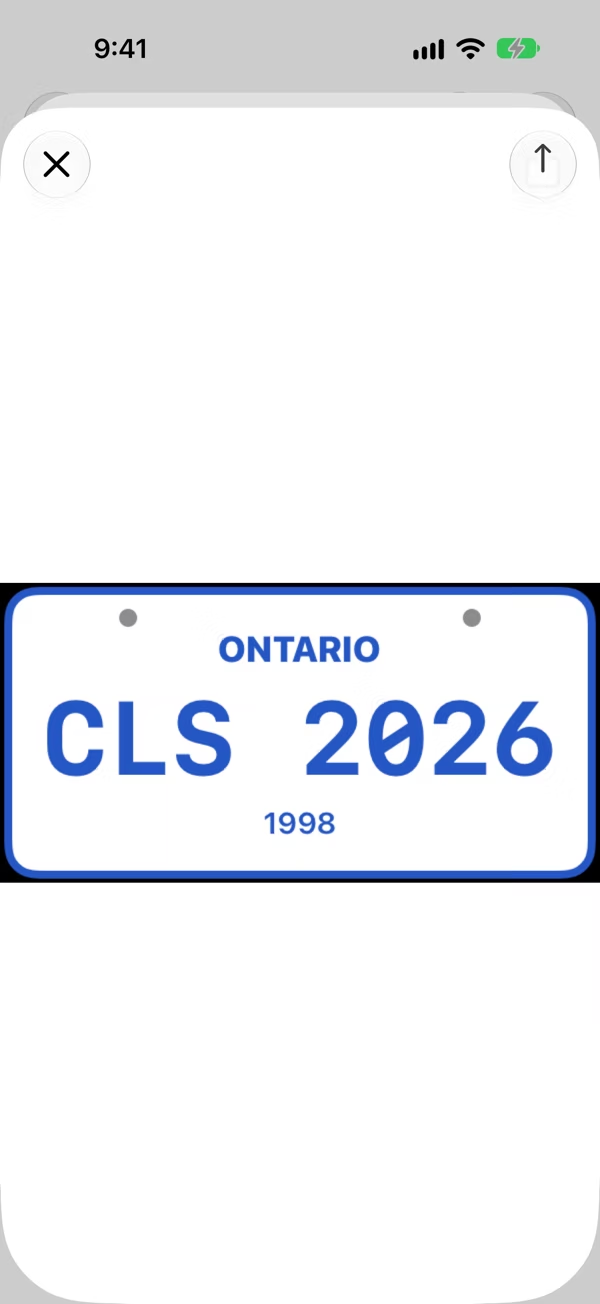
On an item's page, tap its photo to open the slideshow. Swipe through the photos, and use the share button to send one to someone or save it.
Save to your photo library
Classifier can turn your items into one picture to share:
- A whole collection: open it, tap ⋯, then Save to Photo Library. You get a grid of the items with photos in the Collection or Wishlist you're looking at. Up to 200 fit in one image.
- One item: on its page, tap ⋯, then Save to Photo Library.
Tap Share Photo to save it or send it on.
Cover photos
Each collection can have a cover photo too, shown on its card. Choose Change Cover Photo from the collection card's menu. See Collections.