Your collections
Fields
Choose the details you record for each item, from text and numbers to dates, locations and barcodes.
Fields are the details you record for every item in a collection, like Year, Condition or Price. Each collection has its own, and you can change them whenever you like.
Field types
When you add or edit a field, you choose what kind of data it holds:
| Type | Good for |
|---|---|
| Short Text | Names, countries, set numbers |
| Long Text | Notes and descriptions |
| Number | Years, quantities, counts. Can have units, such as grams |
| Currency | Prices and values, in your default currency |
| Date | When you got something, or when it was made. Type a date or pick it from the calendar |
| Date & Time | The same, with a time |
| Toggle | Yes or no, such as Graded or Signed |
| Location | Where you found it. Long-tap the map to drop a pin, and the item shows it on a map |
| Barcode | Scan a barcode with the camera. See Barcodes and QR codes |
| QR Code | Scan a QR code with the camera |
The type you pick decides what you can do with the field later. For example, Number and Currency fields can be added up in Statistics, and Date fields can go on a line chart.
Change a collection's fields
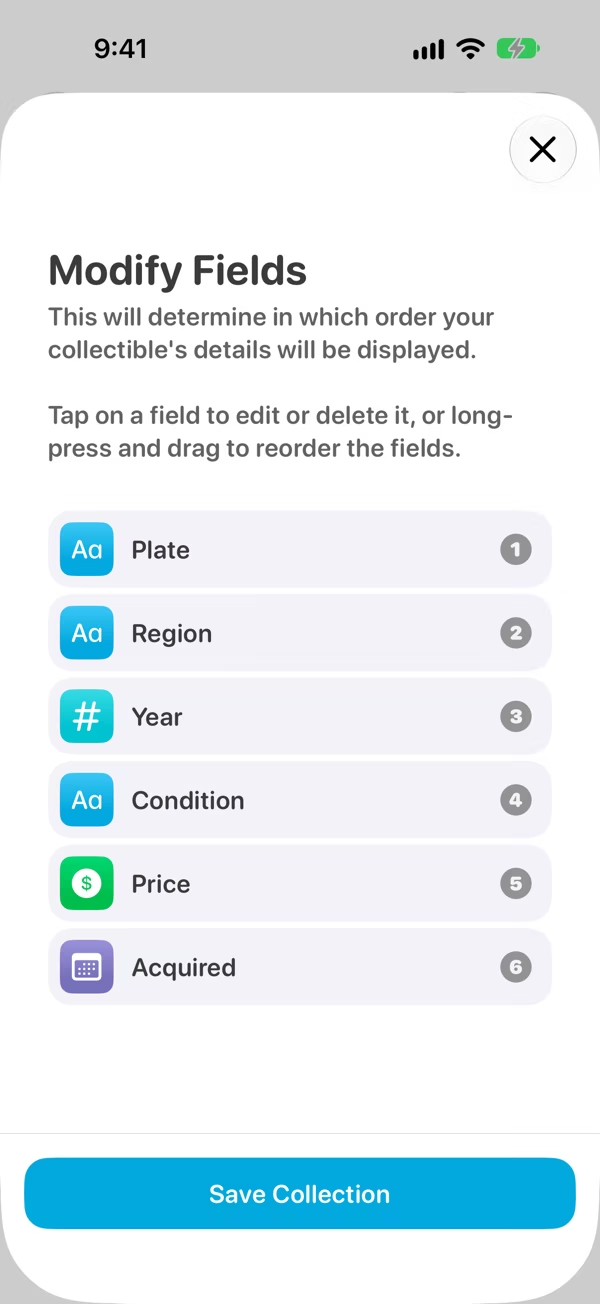
Open the collection, tap ⋯, then Modify Collection Fields (or choose Modify Fields from the collection card's menu).
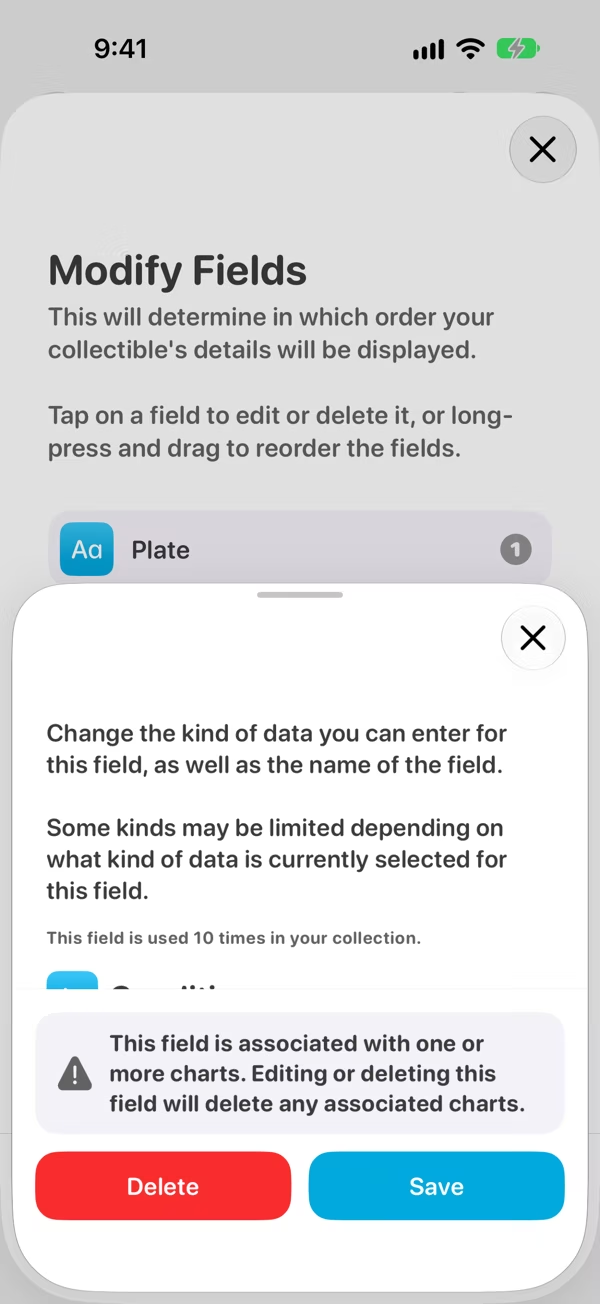
- Tap a field to change its name, type or units, or to delete it. It also tells you how many items use it.
- Touch and hold, then drag to reorder the fields. Items show their details in this order.
Tap Save Collection when you're done.
A field's type can only change to one that keeps its data. For example, a Number can become Currency or text, but text can't become a Number. To add a field, add it to an item (see below), and it becomes one of the collection's fields.
Add a field
Fields are added while you're adding or editing an item. On the item's Fields page, tap one of the suggestions or Add New Field. Classifier suggests the collection's fields you haven't filled in yet first, then common ones like Condition, Value and Personal Notes. An item only shows the fields you add to it, so not every item needs every field.
Turn on Preserve fields for next collectible? to start the next item with the same fields you just used.